How To Do Your TurboTax Crypto Taxes in 2026
Millions of U.S. taxpayers rely on TurboTax for their income tax filings, but crypto reporting is not TurboTax's strong point. Follow our step-by-step guide on how to do your TurboTax crypto taxes with Koinly!
TurboTax has limited support for crypto, with a few exchanges and blockchains integrated, and it struggles to track cost basis.
If you have very few transactions and haven't transferred your crypto, it may be able to calculate your crypto taxes.
TurboTax cannot calculate income from crypto (like staking or mining rewards).
A crypto tax calculator can tackle these gaps and generate reports you can upload straight to TurboTax.
Does TurboTax do crypto?
Partially. TurboTax Online supports some cryptocurrency transactions, but it isn’t designed to calculate crypto taxes on its own. Its exchange and wallet integrations are limited, and automatic crypto imports are only available in TurboTax Online, not the desktop version.
If you have very basic crypto activity on supported exchanges, TurboTax may work. For most crypto investors, the integrations don’t import enough data to calculate taxes accurately, which is why many use TurboTax alongside a crypto tax calculator like Koinly.
Skip ahead for instructions on how to file with TurboTax and Koinly.
Which crypto exchanges does TurboTax support?
TurboTax supports 10+ of the most popular crypto exchanges to varying degrees. Users can either connect using API, or upload a CSV file, but often the CSV file types are not supported by TurboTax, so you'll need to manually edit them, or the API is limited in the data it returns. Here's a full list of the exchanges supported currently, and how they're supported:
Robinhood: Users can import tax forms automatically using their Robinhood ID and document ID
Coinbase: Single sign-on
Binance US: CSV
Bitstamp: API
Gemini: API
Crypto.com: CSV
Kraken: API (margins & futures not supported)
KuCoin: API (margins & futures not supported)
Gate.io: CSV*
Bittrex: API* (margins & futures not supported)
BlockFi: CSV*
Celsius: CSV*
Voyager: CSV*
eToro: CSV*
*These CSV files are not supported. Users will need to manually edit their data to fit the universal TurboTax CSV format. Find out how.
As well as this, there are a few other platforms that allow crypto trading, but aren’t dedicated crypto exchanges, that TurboTax also supports to a certain extent, including:
SoFi
CashApp
Webull
PayPal
Which crypto wallets does TurboTax support?
TurboTax supports a small number of non-custodial wallets, with limited automatic imports:
MetaMask: Enter ETH or BTC key
Trust Wallet: Enter ETH, BCH, DOGE, or LTC key
Coinbase Wallet: Enter BTC, DOGE, LTC, or BCH key
Exodus: Enter LTC, DOGE, BCH, or ETH key
Support is limited to basic blockchain transactions. For example, MetaMask imports only Ethereum or Bitcoin activity, transactions on other networks like Binance Chain or Polygon are not supported. DeFi activity, margin trades, and futures are also not supported when importing Ethereum addresses, which makes TurboTax unsuitable for most active crypto users without additional tools.
Which cryptocurrencies does TurboTax support?
TurboTax supports a few cryptocurrencies, either by entering a public address or xpub key, or by uploading a CSV file.
Bitcoin: Enter public address
Ethereum: Enter public address, but DeFi, margin, and futures trades are not currently supported
Bitcoin Cash: Enter public address
Dogecoin: Enter public address
Litecoin: Enter public address
Tezos: CSV only
Ripple: CSV only
Polkadot: CSV only
Solana: CSV only
Support is basic. Ethereum imports do not include DeFi activity, and for assets that require CSV uploads, many wallets don’t provide compatible export files. While blockchain explorers can sometimes be used, CSVs must be manually formatted to TurboTax’s universal template. If you use multiple wallets for the same asset, you must combine and format all CSV files before uploading.
Can TurboTax track the cost basis of cryptocurrency?
Sometimes. TurboTax can track cost basis only when transactions stay within supported exchanges. For example, buying crypto on Coinbase and selling it on Gemini can work because both platforms are supported.
However, if crypto moves through an unsupported exchange, wallet, or protocol, TurboTax loses the cost basis. For example, buying ETH on Gemini, staking it on MEXC, and later selling it on Coinbase would break cost basis tracking.
TurboTax also does not automatically handle crypto income, such as staking rewards, mining, or airdrops. It won’t calculate the USD fair market value at receipt, meaning this must be done manually or with dedicated crypto tax software.
Can I upload a crypto 1099 to TurboTax?
Yes, TurboTax allows you to upload or connect crypto 1099 forms, such as Robinhood’s 1099-B. In some cases, these forms are imported via CSV or through a direct account connection.
However, 1099-B forms (and the upcoming 1099-DA) are often unreliable for crypto. They cannot track cost basis when assets are transferred in from or out to other exchanges. If you’ve moved crypto on or off an exchange your 1099 form may be incomplete or incorrect, which can lead to overpaying or underpaying tax.
Can TurboTax handle NFTs?
Partially. TurboTax claims to support NFTs on supported blockchains like Ethereum, but it often struggles to correctly track NFT cost basis and calculate gains or losses on sales or transfers.
Can TurboTax report crypto income from staking, mining, and airdrops?
Yes, but not automatically. TurboTax does not calculate crypto income from staking, mining, or airdrops. It only tracks taxable disposals (sales, swaps, or spending) for supported exchanges and wallets.
You must manually calculate the USD fair market value of any crypto received on the day you earned it, or use a crypto tax calculator to do this for you, and then enter those figures into TurboTax.
How to report crypto taxes on TurboTax with Koinly
Koinly calculates your crypto gains and losses for tax reporting purposes and lists everything you need in a dedicated TurboTax report. Once you've downloaded your report, you'll need to upload it to TurboTax Online or TurboTax Desktop.
Get set up on TurboTax & Koinly
To get started, you'll need to get set up and get the reports you need from Koinly, as well as get your account set up on TurboTax.
On Koinly
Sign up and set up your Koinly account by connecting all your wallets, exchanges, and blockchains. Make sure your settings are correct for the USA and select an allowable cost basis method.
Check your data. Check the data you imported to Koinly and fix any outstanding errors. Follow How to ensure your Tax Report is accurate. In particular, make sure you fix all "missing purchase history" warnings (you shouldn't have any disposals with $0.00 cost basis) and fix all "missing market price" warnings (you shouldn't have any disposals with $0.00 proceeds). Leaving these errors will result in errors in TurboTax that you'll have to manually fix, which is quite time-consuming.
Upload your 1099-DAs to Koinly. This allows us to autofill your TurboTax PDF(s) and avoids a lot of manual reconciliation in TurboTax! If you haven't received a 1099-DA from a given exchange, make sure you mark this as non-received in Koinly.
Download the TurboTax Report from the tax report page in Koinly. Due to changes to TurboTax's filing flow this year because of Form 1099-DA, this is now a zipped file containing individual PDF files for each exchange, while non-custodial wallet transactions will be grouped together in one PDF.
If you have income or other allowable expenses, or if you'd like to compare your totals in TurboTax to ensure accuracy (we recommend doing this), you may also want to download the Complete Tax Report from Koinly.
On TurboTax
Sign up or log in to your TurboTax account. Please note you'll need the Premier Plan or higher on both the online and desktop versions to do your crypto taxes.
Fill out your personal information for your TurboTax account as it relates to your circumstances. We'll only be covering how to file your crypto taxes in this guide. If you need help learning how to file using TurboTax, generally, you can find more information on the TurboTax site.
Where to enter crypto in TurboTax
There are two different sections you may need to head to in your TurboTax account to do your crypto taxes:
Capital gains and losses
Miscellaneous income
Let's look at each.
If you need a quick refresher on how crypto is taxed in the US, check out our crypto taxes guide.
How to report crypto capital gains in TurboTax
1. Under income & expenses (or wages & income), select review/edit (or start if you've not touched this section yet).
2. Select start next to investments and savings (Forms 1099-B, 1099-INT, 1099-DIV, and 1099-DA, crypto).

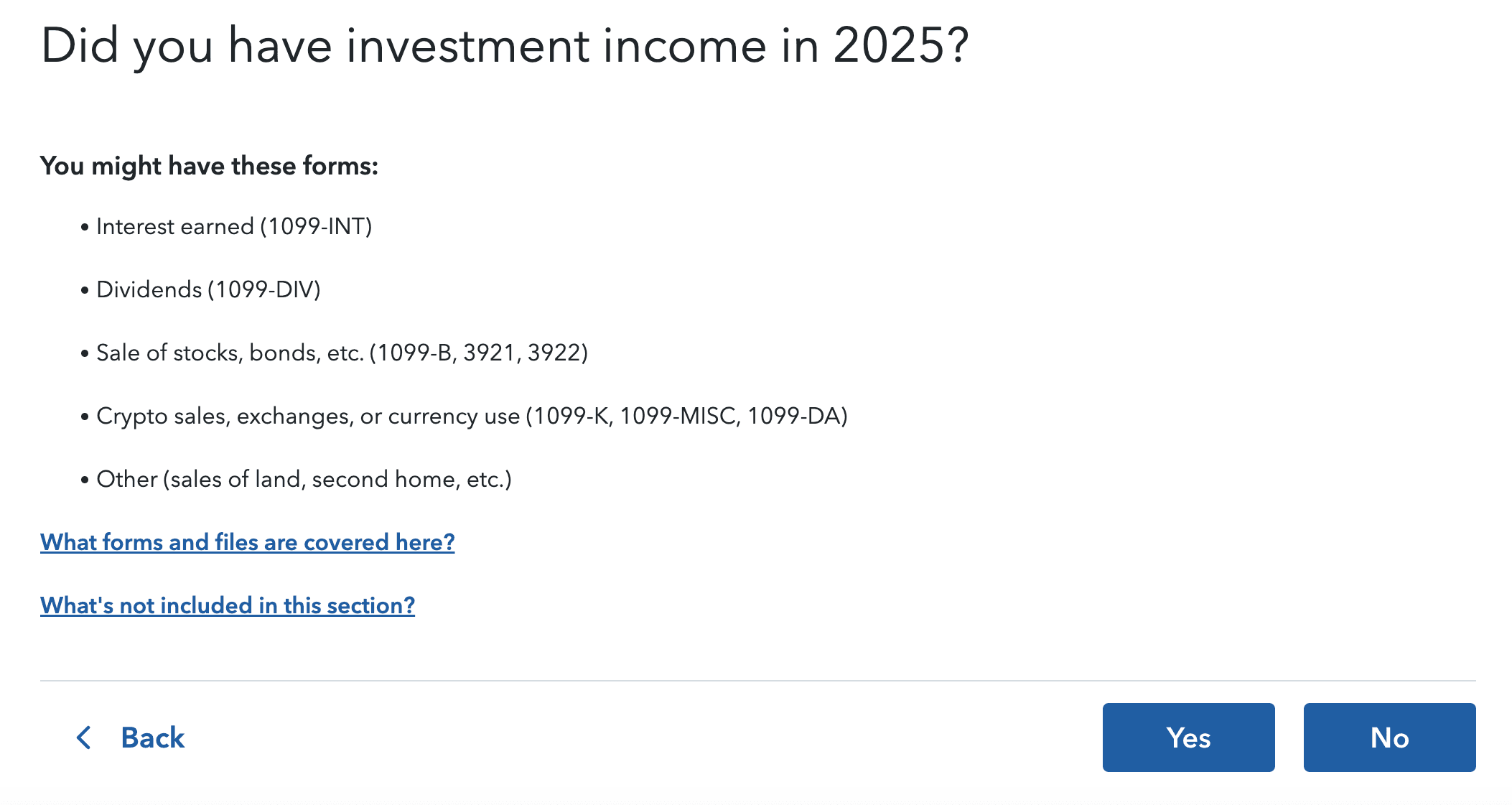
3. Answer yes to the question: Did you have investment income in 2025?
4. Answer yes to the question: Did you have crypto income or losses?

5. Answer yes to the question: Was the crypto you sold transferred between exchanges or wallets?

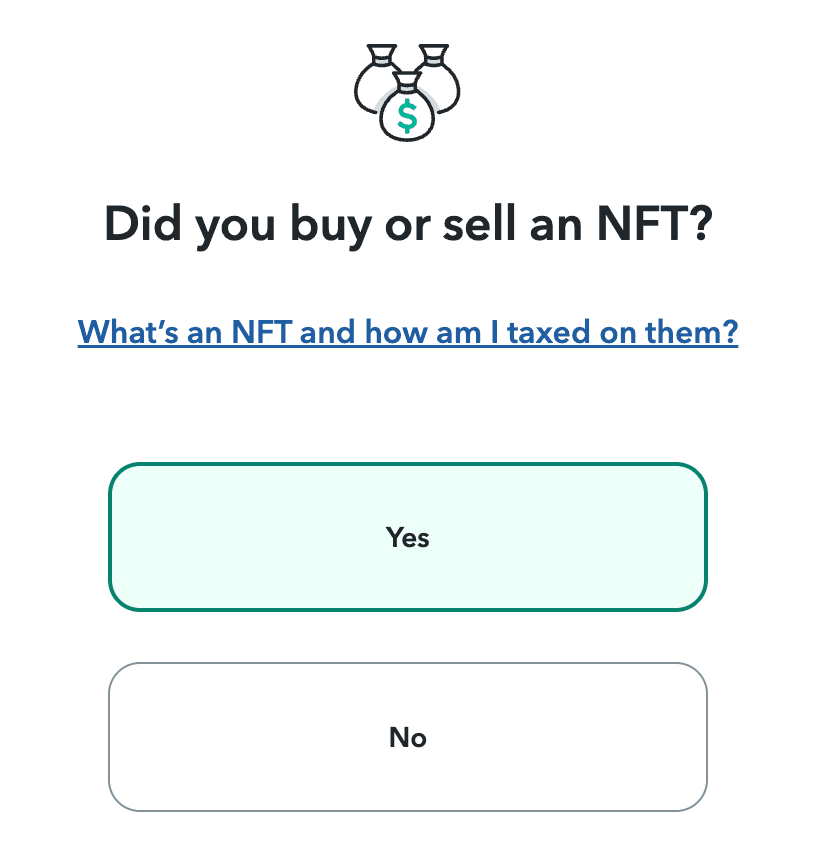
6. Answer yes/no to the question: Did you buy or sell an NFT? (as it applies to your circumstances)
7. Answer yes/no to the question: Did you receive a reward in the form of crypto? (as it applies to your circumstances)

8. Answer yes/no to the question: Did you participate in DeFi or a DAO? (as it applies to your circumstances)

9. Select skip on the next page and continue on the following page
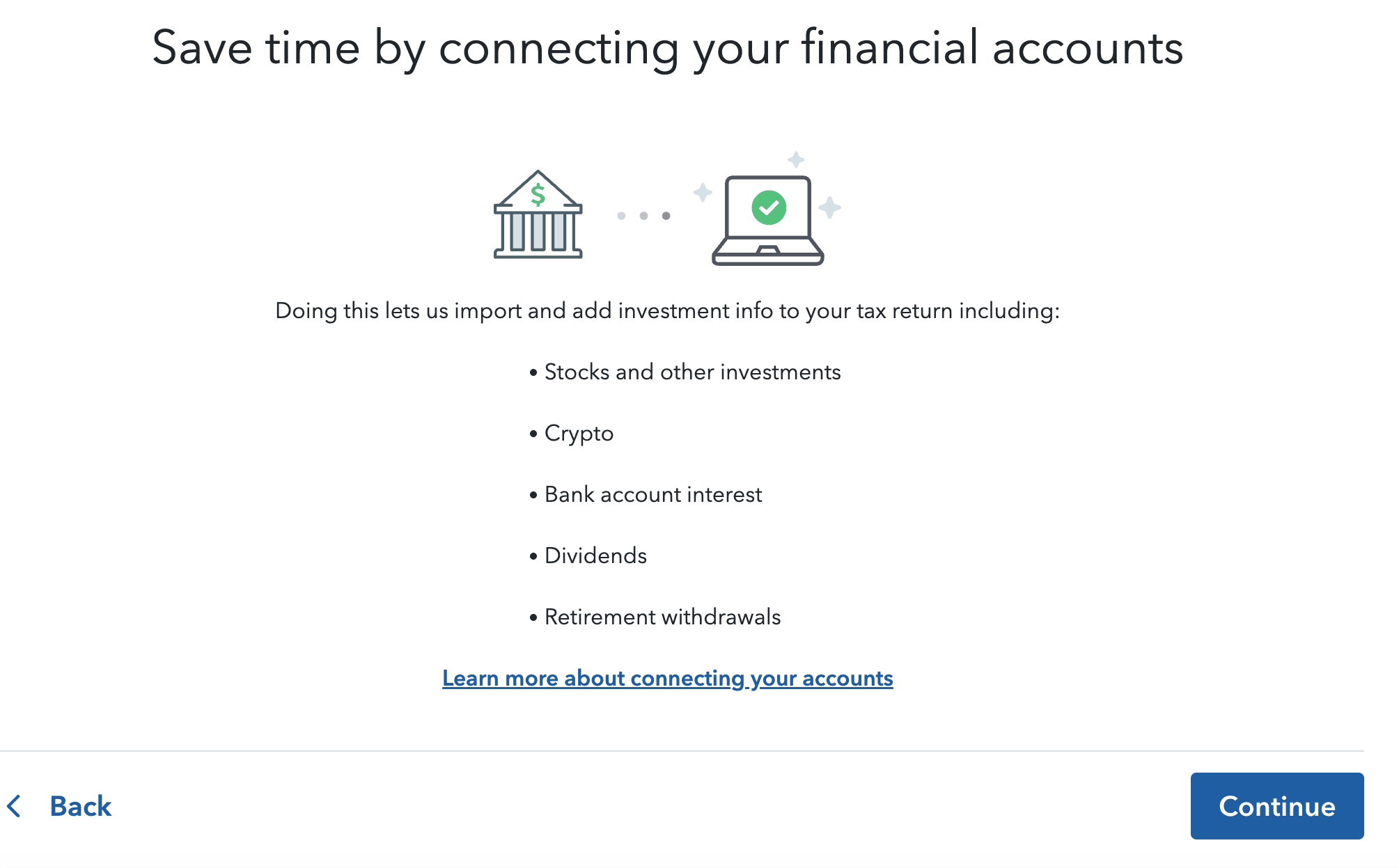
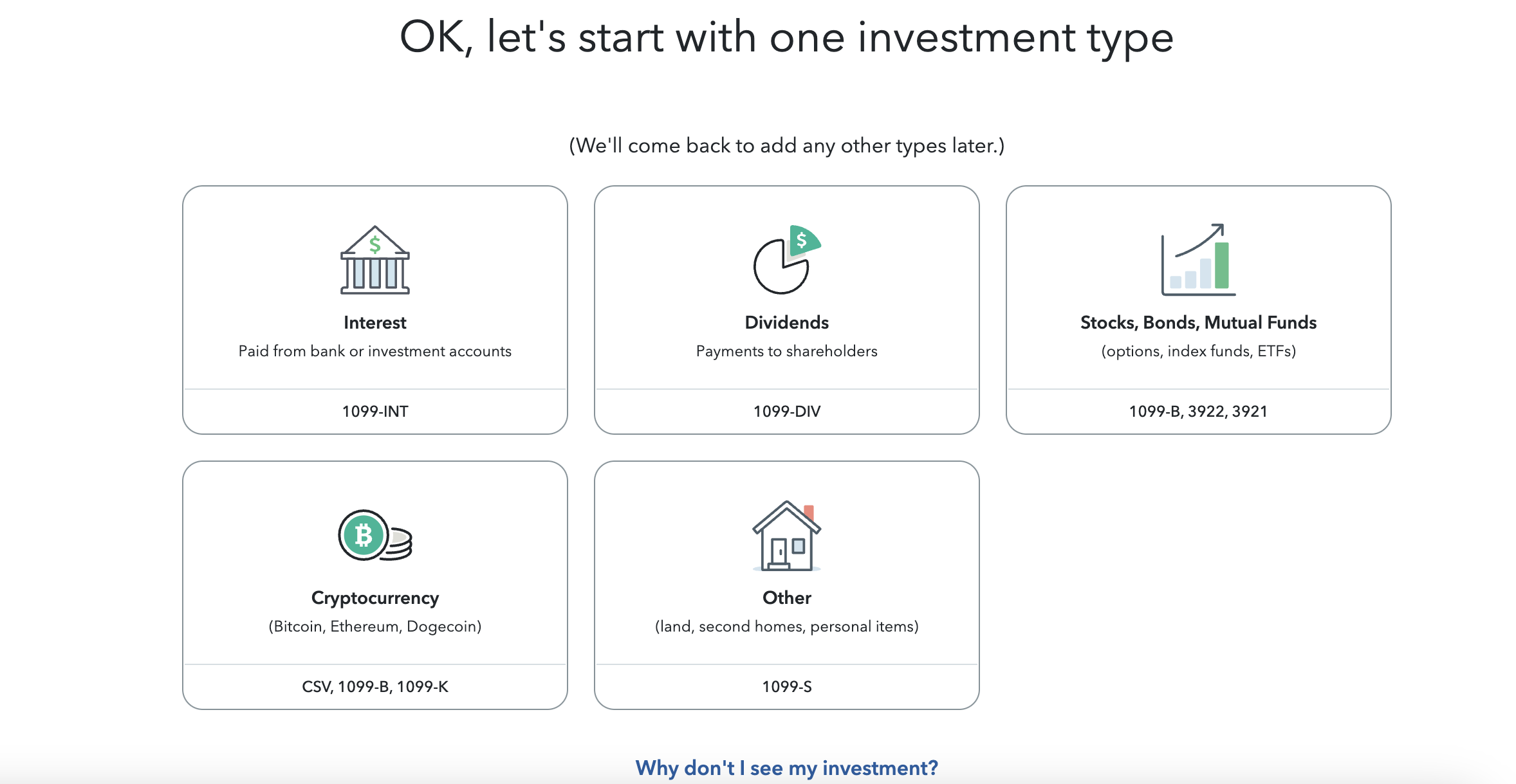
10. Select enter a different way on the following page.

11. Select cryptocurrency on the following page, then continue.
12. Under how do you want to add your docs?, select upload, then continue
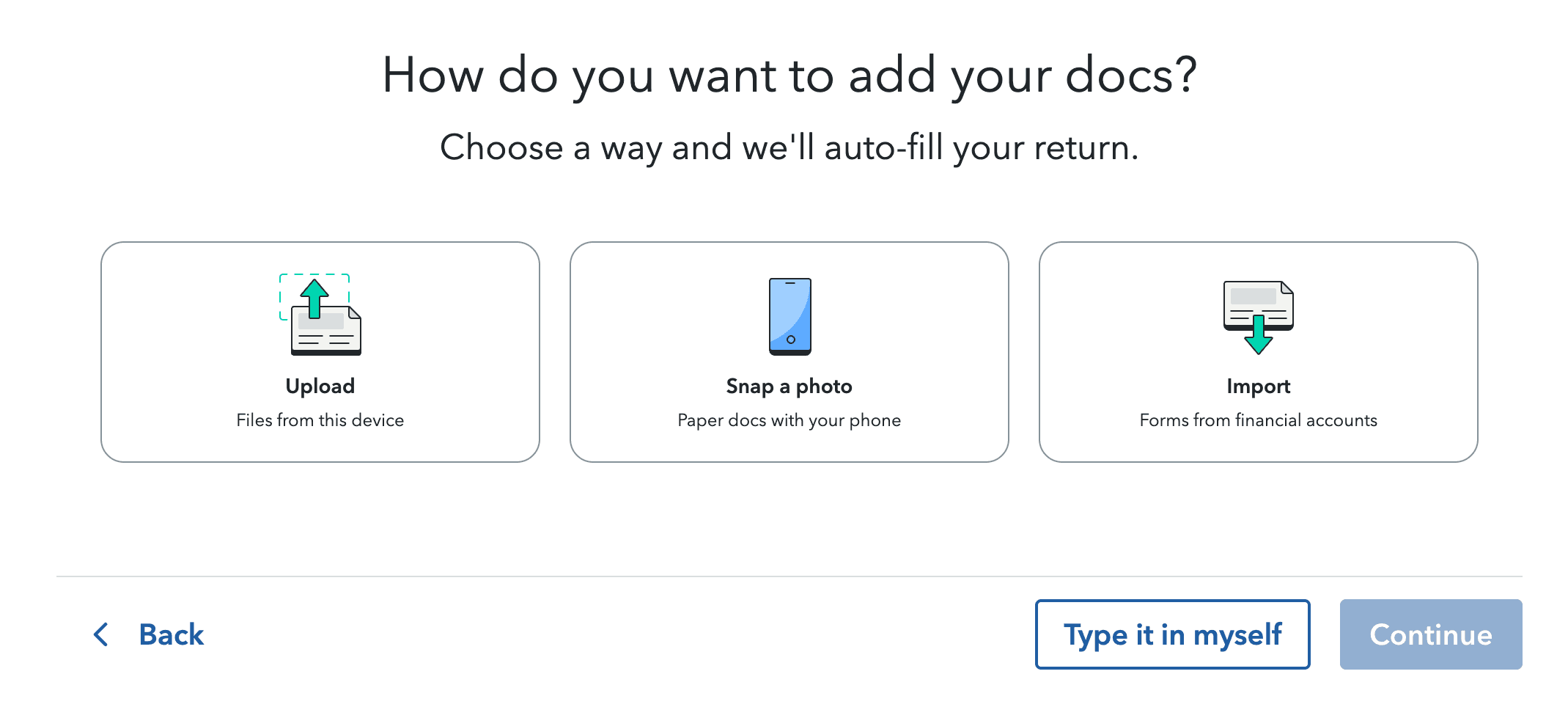
13. Upload all of your Koinly TurboTax Report PDF files.
14. Select review, then continue on the next page.
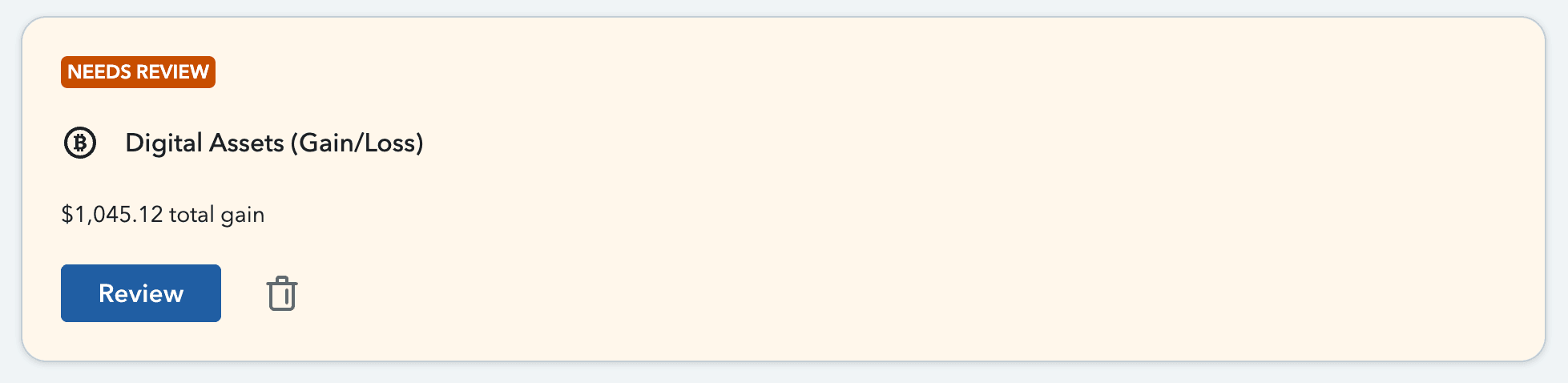
15. Compare the totals of your Koinly Complete Tax Report against the totals recorded in TurboTax. If there is a small difference, this is normal (it's because TurboTax rounds your figures). Make sure the sales section accurately reflects your records. This will be auto-filled based on the 1099-DAs you uploaded to Koinly.
Tips on reviewing your TurboTax transactions
Once you've uploaded your PDF, you may have to review single transactions for issues. To help you spot them, known issues include:
$0.00 cost basis or proceed transactions
Non-English text characters
The length of asset names (too many characters)
Symbols
We also recommend checking out our TurboTax help guide for other common issues.
16. Once you're happy with everything, select confirm. Add any other investments as relevant to your circumstances and continue with the rest of your tax return.
How to summarize transactions in TurboTax Online
Some users with a high transaction volume may struggle to upload PDF files due to limitations in TurboTax. If that's the case for you, you can summarize your transactions and attach your Koinly 8949 Report as a supporting document. Koinly generates the IRS Form 8949 Summary to help you report these transactions. There are two PDFs in this report, one is a summary of your transactions, which you can use to copy and paste the figures into TurboTax for your reporting. The second is your statement of transactions, which you can upload as a supporting document for your summary reporting.
Here's how to summarize your transactions:
In TurboTax, go to federal, then wages and income.
Go to investments and savings, and select start/revisit next to Stocks, Cryptocurrency, Mutual Funds, Bonds, Other (1099-B, 1099-DA).
Select add investments.
Select enter a different way.
Select type it in myself.
Select digital assets, then continue.
Enter a name for digital asset service/filer, for example, Koinly.
Select yes on the page Did you get a 1099‑DA?, then continue.
Select yes to the question Do you have more than three sales on your 1099‑DA?
Select yes to the question Did you buy every investment listed on your 1099‑DA?
Select sales section totals, then continue.
Select the relevant check box for Form 8949. You can find this on your Form 8949 Summary.
For total proceeds (sum of all Box 1f), copy the figure from your Form 8949 Summary.
For total cost or other basis (sum of all Box 1g), copy the figure from your Form 8949 Summary.
Select continue. If you have multiple sales totals to enter, you can then select add another sales total to repeat these steps as many times as necessary.
Once you’ve added all your transactions on the page, review your sales section totals, select continue.
Upload the statement PDF from your IRS Form 8949 Summary and select continue. This will now be attached as a supporting document for your tax return.
How to report crypto income in TurboTax
Your TurboTax Online report only covers assets (so capital gains, so to report your crypto income, you'll need to use the income summary figure in your Koinly Complete Tax Report. If you want to split your crypto income into the different types of income you've had, for example, mining, staking, airdrops, etc, then you'll need to download the Koinly Complete Tax Report to get this information.
Please note that if you received a 1099-MISC for crypto income from a centralized exchange, you may need to report your crypto income differently to avoid reporting duplicate income.
1. Under wages & income, select the drop-down menu next to less common income.
2. Select start (or revisit) next to miscellaneous income, 1099-A, 1099-C.
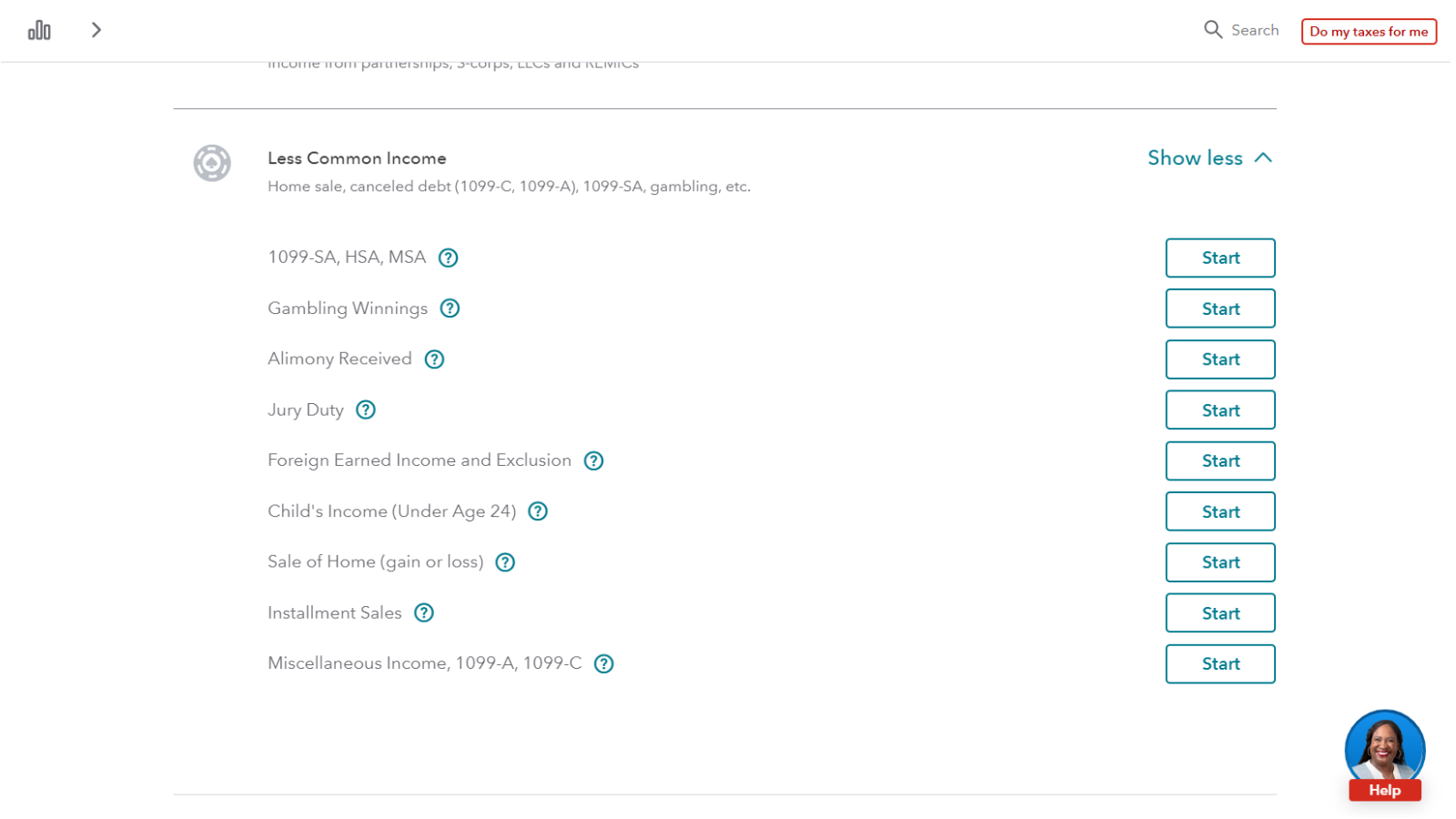
3. Select start (or revisit) next to digital assets not reported anywhere else.
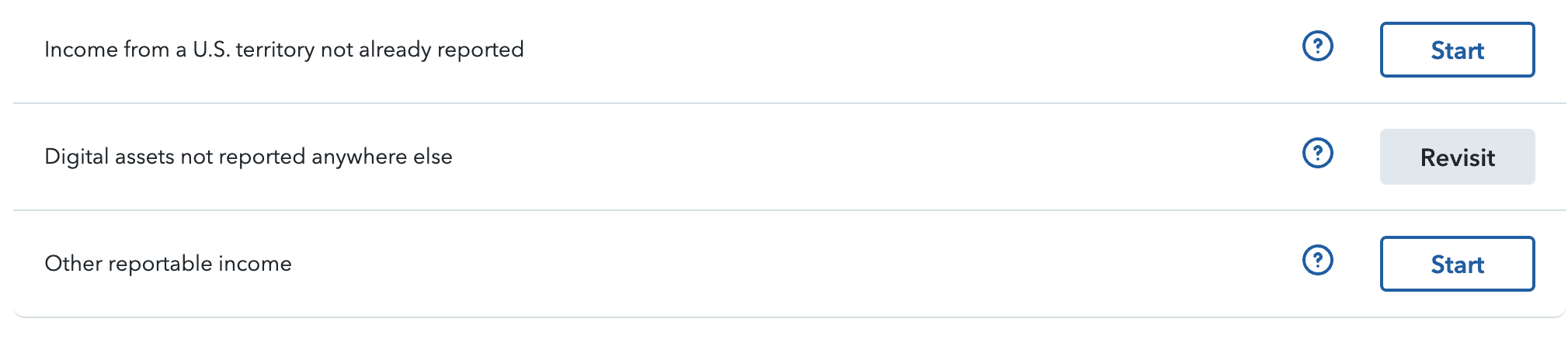
4. Enter the total income figure from your Koinly report (or if you're breaking it down into different types then enter the figure reflected in your income report and repeat the steps above until you've entered all your income).
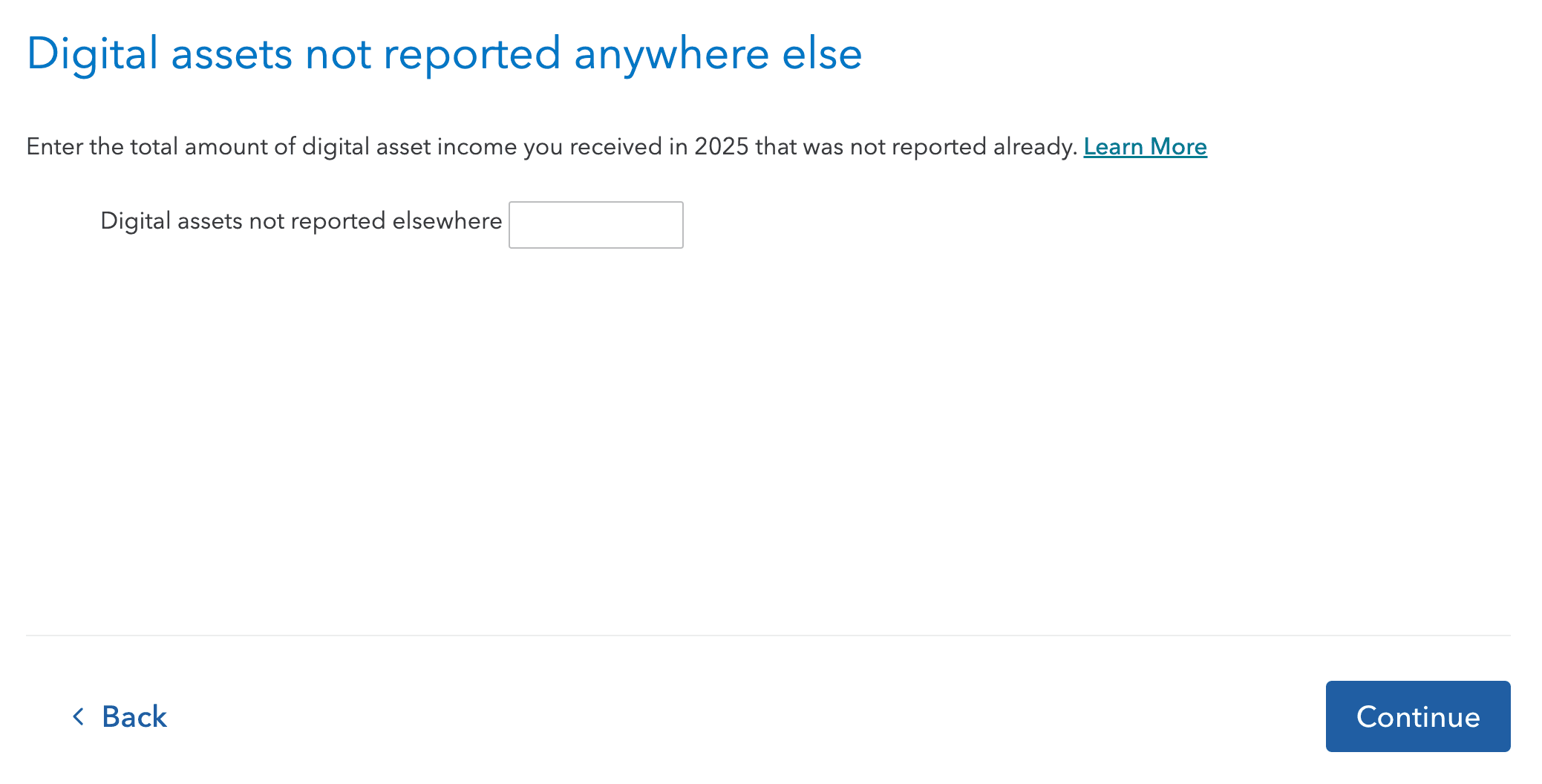
7. Select continue.
8. Review your miscellaneous income summary section and select done once you're happy with it.
9. You can now finalize and submit your return.
Please note that other deductions may be possible, like charitable donations, allowable expenses, and tax planning deductions for self-employed workers. You should include these as relevant to your circumstances.
How to report crypto with TurboTax desktop
Koinly generates a TXF File for TurboTax desktop. However, TurboTax hasn't yet updated its TXF format to include 1099-DA information. Because of this, there is no way for Koinly (or any other crypto tax software provider) to generate a file that includes this information currently. So if you export and upload your TXF from Koinly to TurboTax Desktop, you'll need to add 1099-DA information to every single transaction manually.
However, there are a couple of workarounds to this, including:
Importing your information from TurboTax online to TurboTax Desktop
Summarizing transactions and mailing in supporting documents
Manually entering your transaction data
Follow the steps for each method below.
How to import your information from TurboTax Online to TurboTax Desktop
Koinly generates a compatible PDF report for TurboTax Online. Users can start their tax return free on TurboTax Online, upload the compatible PDF report, and then import this information over to TurboTax Desktop. Here's how.
Sign up/in to TurboTax Online. Make sure this is the same email account associated with your TurboTax Desktop account. You can start filing for free, so there's no need to pay for the software to transfer your transaction data.
Select start next to investments and savings (Forms 1099-B, 1099-INT, 1099-DIV, and 1099-DA, crypto)
Answer the next few questions as they pertain to your circumstances
When you get to the page, “save time by connecting your financial accounts”, select skip and then continue
Select enter a different way on the following page
Select cryptocurrency on the following page, then continue
Under how do you want to add your docs? Select upload, then continue
Upload all of your Koinly TurboTax Gain/Loss Report PDF files
Make sure you review your transactions in TurboTax online as needed. This will help your transactions import accurately into TurboTax Desktop.
Select review, then continue on the next page
Now head over to TurboTax Desktop
Start a new return
Under manage your returns, select continue from TurboTax Online
Follow the steps to import your data across
Once your information is imported, your transactions from TurboTax Online will appear next to the stocks, cryptocurrency, mutual funds, bonds, other section in TurboTax Desktop. You should review these for accuracy to ensure your transaction data has transferred correctly.
Users with a very high transaction count may face errors when uploading PDF files to TurboTax Online due to upload limitations in TurboTax. In these instances, you can opt to summarise your transaction totals and mail in supporting documents.
How to summarize transactions in TurboTax Desktop
If you have too many transactions to report each manually, as is the case for many crypto investors, you can summarize your transaction totals in TurboTax (per exchange/wallet), and attach a supporting statement of individual transactions.
The IRS guidance states:
"Exception 2. Instead of reporting each of your transactions on a separate row of Part I or II, you can report them on an attached statement containing all the same information as Parts I and II and in a similar format (that is, description of property, dates of acquisition and disposition, proceeds, basis, adjustment and code(s), and gain (or loss)). Use as many attached statements as you need. Enter the combined totals from all your attached statements on Parts I and II with the appropriate box checked.
For example, report on Part I with box B or box H checked all short-term gains and losses from transactions your broker reported to you on a statement showing basis wasn't reported to the IRS. Enter the name of the broker, followed by the words “see attached statement” in column (a). Leave columns (b) and (c) blank. Enter “M” in column (f). If other codes also apply, enter all of them in column (f). Enter the totals that apply in columns (d), (e), (g), and (h). If you have statements from more than one broker, report the totals from each broker on a separate row."
Unfortunately, as TurboTax currently has no option to attach a supporting statement, users will need to mail in their generated 8949 from Koinly. You can do this via paper file alongside Form 8453 to: Internal Revenue Service, Attn: Shipping and Receiving, 0254 Receipt and Control Branch, Austin, TX 73344-0254
Koinly already utilises this code M for its IRS 8949 Report this year, so you can use this report to summarize your totals for TurboTax. You'll need to do this for each exchange/wallet you have an 8949 for. For example, if you have:
One part one 8949 for Coinbase for short-term gains
One part two 8949 for Coinbase for long-term gains
One part one 8949 for Kraken for short-term gains
One part two 8949 for non-custodial transactions for long-term gains
You'll need to enter the totals from all four 8949s in Koinly into TurboTax to accurately summarize your transaction totals.
Once you have your Koinly IRS 8949 Report, head over to TurboTax. Go to investment income, select start/update next to stocks, cryptocurrency, mutual funds, bonds, other, and select + add investments.
For each 8949 form, do the following:
Select skip this import on the page titled let us enter your bank and brokerage tax documents.
Select digital assets, then continue.
Enter the name of your digital asset service/filer, for example, Coinbase
Select yes to the question Did you get a 1099‑DA? This is the only way TurboTax lets you enter a summary of transactions for crypto assets currently; you amend this answer later in the filing flow.
Select continue
Answer yes to the question: Do you have more than three sales on your 1099‑DA?
Answer yes/no to the question: Did you buy every investment listed on your 1099‑DA?
Select sales section totals, then continue
For the Applicable checkbox on Form 8949 dropdown, select the relevant checkbox from your Koinly 8949 (i.e., short-term did not receive 1099-DA form would be box I from your Koinly report)
For total proceeds, enter the total figure from column D of your Koinly 8949
For total cost or other basis, enter the total figure from column E of your Koinly 8949
Select continue
Repeat these steps as necessary until you've entered all your short and long-term totals for each exchange/non-custodial 8949 from your Koinly report.
You'll be reminded to mail in your 8949 on the next page titled: How do you plan on submitting your 1099‑DA to the IRS?
If you're e-filing your tax return, then mail your statements along with Form 8453 to:
Internal Revenue Service
Attn: Shipping and Receiving, 0254
Receipt and Control Branch
Austin, TX 73344-0254
If you aren't e-filing, then mail your statements along with your entire tax return to your local IRS office.
How to enter your transactions manually in TurboTax Desktop
If you have a small number of transactions and don't want to or can't move data across from TurboTax Online to TurboTax Desktop, you can enter your transactions manually into TurboTax. To do this, download the IRS Report(s) from Koinly. You'll need your Form 8949s to file, specifically, the section titled "Statement". This has your individual transaction details. In TurboTax, do the following:
Go to investment income
Select start/update next to stocks, cryptocurrency, mutual funds, bonds, other
Select + add investments
Select skip this import on the page titled let us enter your bank and brokerage tax documents
Select digital assets, then continue
Enter the name of the digital asset service/filer, for example, Coinbase.
On the page, did you get a 1099‑DA? Select yes, no, or I don't know, as relevant to your circumstances. If you received a 1099-DA and your cost basis is inaccurate, as it's only reporting gross proceeds, you have the opportunity to amend this.
The filing flow for each answer varies slightly depending on your selection.
If you select yes, you should use the figures where possible from your 1099-DA(s) to file, and adjust your cost basis (if they're incorrect) using your Koinly report per transaction. You can do this by checking the box: the cost basis is incorrect or missing on my 1099‑DA, and on the following page, enter the cost basis from your Koinly reports for the relevant transaction (you'll find this in the statements section of your 8949).
If you select no/I don't know:
Select the type of investment from the dropdown.
Select the relevant answer from the dropdown for how you received your investment
Scroll down to the 'statement' section of your Koinly 8949 report.
For the name of the digital asset and the number of units in the boxes in TurboTax, enter the units and name from column A of your Koinly report.
For the date acquired box, enter the date from column B of your Koinly report.
For the date sold or disposed of box, enter the date from column C of your Koinly report.
For proceeds, enter the figure from column D of your Koinly report.
For cost or other basis, enter the figure from column E of your Koinly report.
Repeat this for every single transaction in your statement as necessary.
How to report crypto income in TurboTax Desktop
If you have ordinary income from crypto (for example, from staking or mining rewards), you'll need to report this elsewhere in TurboTax Desktop:
Go to less common income
Select start/update next to miscellaneous income, 1099-A, 1099-C
Select start/update next to digital assets not reported anywhere else
Enter your total income from digital assets for 2025. You can find this in the Income Summary section of your Koinly Complete Tax Report.
Select continue
FAQs
Where do I enter crypto in TurboTax?
You report crypto gains and losses under investments and savings (1099-B, 1099-INT, 1099-DIV, Crypto Gain/Loss Report) and crypto income under less common investments as miscellaneous income or using a 1099-MISC form. You can find more detailed steps above.
How can I deduct costs related to crypto in TurboTax?
Koinly already includes allowable costs in your cost basis calculations, for example, purchase or trading fees. However, there are other costs, for example, margin trade fees, margin interest fees, transfer fees, and more that Koinly does not include in your cost basis calculations (but does calculate for you and include in your Complete Tax Report). This is because the IRS may not allow these as deductible costs. You should speak to an experienced crypto accountant for advice on this.
How long does TurboTax take?
This very much depends on your personal circumstances and how complex your financial situation is. For most taxpayers with a simple enough financial situation, using the right tools for the job, your TurboTax return should take no longer than an hour.
What's the best crypto tax software for TurboTax?
We might be biased, but Koinly is purpose-built to help you file your TurboTax tax return easily. You can download an online or desktop TurboTax report from Koinly and upload it to TurboTax to file in minutes.
How much does TurboTax online cost?
TurboTax has many pricing options, from free to $89 for the premier plan or $119 for self-employed taxpayers (plus state filing costs). The plan you'll need depends on how complicated your tax return is. For crypto investors, you'll need TurboTax Premier.
Why does TurboTax say needs review?
Once you've reported your crypto taxes on TurboTax, you'll be given the option to review every transaction. You do not need to do this, especially if you're pushed for time.
What's the transmission trouble error in TurboTax?
The transmission trouble error in TurboTax generally appears for one of two reasons. Either the file you've uploaded of your transactions is too large, or the TurboTax import capabilities are struggling. Try summary reporting or try again later when the servers aren't as busy.
Does TurboTax have a limit for transactions from a CSV import?
TurboTax removed CSV file support for crypto transactions in January 2026.
Can Koinly aggregate my TurboTax CSV file transactions?
Koinly no longer generates a CSV file for TurboTax because TurboTax removed CSV file support for crypto transactions in January 2026. Instead, we now generate a PDF TurboTax gain/loss report which is compatible with TurboTax Online.
How to report Robinhood crypto on TurboTax?
Robinhood crypto investors can log in to TurboTax and upload their Robinhood crypto tax documents by providing their user ID and document ID to TurboTax. TurboTax can then import your report. A word of warning, though, Robinhood 1099-DA forms may not be accurate for crypto if you've transferred crypto on or off the platform, as Robinhood cannot track the cost basis of crypto in this instance. You should check your 1099-DA form carefully to ensure it's correct. Learn more about crypto 1099 forms.
How can I file crypto taxes for free?
Some taxpayers may be able to use the FreeFile USA service from the IRS to file crypto taxes for free. To do this, you'll need the patience to fill out forms (although Koinly can still generate your Form 8949 and Schedule D for you!), as well as the confidence to fill out your tax return without the aid of a tax app or accountant. Crypto tax can get complicated, so proceed with caution.